Posts

Update Source Anchor to ms-DS-ConsistencyGUID

A key part of most Office 365 deployments is directory synchronization with on-premises Active Directory (AD). To maintain a link between individual object in AD and Office 365, one attribute in AD is defined as the source anchor. The source anchor acts as a unique identifier for each object so that you can change properties like UPN and have them replicate to the proper matching object in Office 365. Older versions of Azure AD Connect used the objectGUID attribute as the source anchor. In many cases, this is a good choice because it is an attribute that doesn't change. However, in complex configurations with multiple AD forests, this can cause an issue during migrations. When a user account is moved from one AD forest to another, it gets a new objectGUID in the new forest. Due to the new objectGUID , Azure AD Connect treats the user as a new user instead of an existing user. To avoid this issue, we need to use an attribute for source anchor that can be moved between forests. Micro...
O365 Removing Mobile Device Fails in Portal

Image
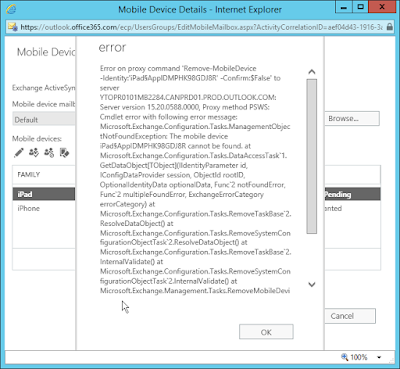
A client has an issue in their Office 365 tenant that started yesterday (March 12/18). When attempting to delete a mobile device linked to a user, it fails and gives the following message: Error on proxy command "Remove-MobileDevice -Identity:' DeviceName ' -Confirm:$false to server...the mobile device DeviceName cannot be found... Error when removing mobile device I was still able to remove the device by using a Windows PowerShell prompt connected to Exchange Online. But what I noticed is that for the Remove-MobileDevice cmdlet to work, I needed to use the Identity property from the mobile device rather than the Name property that the Exchange admin portal was attempting to use. Using Windows PowerShell to remove the mobile device You can see in the screenshot above using the Name or DeviceID properties didn't work. Only the Identity property which includes the full path with the user name works. I've opened a support ticket with Microsoft and we'll see what ...

Outlook on the web offline access failure

There is a bug in Exchange Server 2016 CU6, CU7, and CU8 that prevents clients from using offline access for Outlook on the web. It was working properly in CU5. In CU5, in Options, you select Turn on offline access and then another window pane is shown that asks whether you have exclusive use of the computer or not. In CU8 (also CU6 and CU7), that pane appears very quickly and then goes away. Basically the text flickers but it is removed right away. You can see a video of this behavior below. I tested this with Internet Explorer, Edge, Firefox, and Chrome with consistent results. I also tested this using both Windows 10 and Windows Server 2016 as the client operating systems. After trying everything I could think of for testing, I posted this issue to the Microsoft support forums and they confirmed that this is a bug and will be fixed in a future update. https://social.technet.microsoft.com/Forums/office/en-US/3fbc0750-4a4c-4860-a3cc-f8112e3eec8a/outlook-on-the-web-owa-offline-mode-fa...

Install-AntispamAgents.ps1 Fails for Exchange 2016 CU7 and CU8

Image
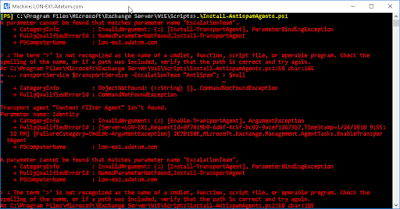
Not many organizations enable the antispam agents on their Exchange servers since they're probably paying for an additional service to do spam filtering. However, if you attempt to enable it on Exchange Server 2016 CU7 or CU8, there is an error in the script that you need to run. As of right now, CU8 is the latest update available so, this may continue in later updates. To enable the antispam agents in Exchange Server 2016, you run the Install-AntispamAgents.ps1 script located in C:\Program Files\Microsoft\Exchange Server\V15\Scripts. However in CU7 and CU8, you get an error like this: There are several screens of error information, but the key part is: A parameter cannot be found that matches parameter name 'EscalationTeam'. If you open the script and go to line 50, you'll see the following at the end of the line: If you delete the following text from that line, the script works properly: -EscalationTeam "AntiSpam"; Please note that this script does have a di...

All Certificate Names MUST be in Subject Alternative Names

Image
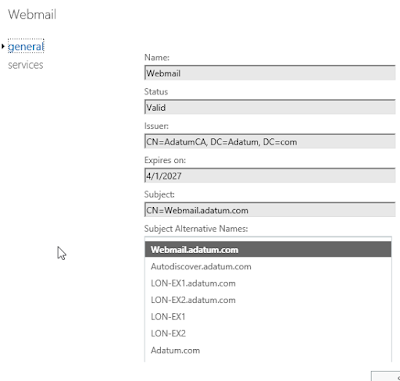
This has been popping up for a while, but it's worth pointing out again. When you get a SAN/UCC certificate, the DNS name that you use for the subject (common name) also needs to be in the subject alternative names attribute. For example: Subject: webmail.contoso.com Subject alternative names webmail.contoso.com exch1.contoso.com exch2.contoso.com Autodiscover.contoso.com When you get your certificate from a public certificate authority (CA), most of them ensure that the subject is also added as a subject alternative name. However, some might not and you should watch for it. It's important to note that the Microsoft CA does not automatically add the subject to the list of subject alternative names. So, make sure that you do it as part of your certificate request for your internal CA. The reason you need to do this is because of how web browsers are processing subject alternative names. Web browsers are ignoring the subject if a list of subject alternative names is present. All ...

PowerShell cmdlet to query .NET Framework version

Image
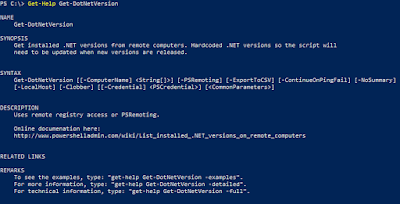
Whenever I'm doing new installs of Exchange, I'm annoyed when I need to figure out the .NET Framework version installed based on registry keys. You can see the documentation here: https://docs.microsoft.com/en-us/dotnet/framework/migration-guide/how-to-determine-which-versions-are-installed  Just like the bad infomercial says: "There's got to be a better way!" This has bothered me for sometime and I considered writing a small script to query and display the version. Then I thought...that would be good if I put it in the PowerShell Gallery so that I could easily access it from anywhere. Then I thought...I'm probably not the first person to have this idea. In the PowerShell gallery, Joakim Borger Svendsen has been kind enough to create this for us as a module named DotNetVersionLister . He's also kind enough to keep it updated. There have been seven releases in 2017. On a computer that has Internet access, you can install directly from the PowerShell Gallery...

Docker Fails to Start on Reboot

For the last couple of weeks I've been working with Windows containers using Docker. I ran into a severe problem with the networking. I created a transparent network on the host and rebooted. After reboot, the docker service wouldn't start and had the following error in the event logs: Log Name:      Application Source:        docker Event ID:      4 Task Category: None Level:         Error Error starting daemon: Error initializing network controller: error obtaining controller instance: failed to get endpoints from store: failed to decode endpoint IPv4 address ( ) after json unmarshal: invalid CIDR address: My first fix for this issue was to delete the following file: C:\ProgramData\docker\network\files\local-kv.db After this file was deleted, I was able to start the Docker service and it stayed running. That file was recreated when the docker service started and...