Posts

OAuth Certificates with Hybrid Exchange

Image
Older versions of Microsoft Exchange in a hybrid configuration with Exchange Online (EXO) used a federation trust to authenticate connections for free/busy information. Newer hybrid deployments of Exchange 2016/2019 use OAuth authentication instead of federation. OAuth authentication is reliant on the Auth certificate in your on-premises Exchange. This certificate is created automatically with a lifetime of 5 years when you install Exchange Server on-premises. If this certificate has been replaced, then you also need to update Azure AD with the new certificate information. The simplest way to update the information is by running the hybrid wizard again after you update the Auth certificate. I wrote a previous post about renewing/updating the Exchange Server Auth certificate here: http://byronwright.blogspot.com/2018/05/expired-microsoft-exchange-server-auth.html If you update the Exchange Server Auth certificate and forget to update the information in Azure AD, you are likely to see fr...

Laggy Mouse and Jaggy Fonts

Image
I have a 4K TV hooked up as my monitor with an older video card. Unfortunately, this video card can only output 4K at 30Hz which isn't optimal, but for my purposes is just fine. I'm not playing games that require fine tuned actions. I recently changed my display to 1080P for an online presentation and then back to 4K. By default, 4K was running at 60Hz, however, this made the text slightly blurry because HDMI was compressing the signal. Set it down to 30Hz to fix that, but then the text was jaggy and not smooth. Also, my mouse was really laggy as I moved it around the screen. When I changed back to 4K 30Hz, Windows 10 and the TV negotiated using HDR (High Dynamic Range) for display. Normally when Windows 10 negotiates a setting, that's preferred, but not in this case. When I disabled HDR in display settings, my fonts were smoothed properly and the mouse lagging stopped.

Convert ImmutableID to Hex for AD

To get the immutableID value from a user (should be able to do similar with Get-MSOLUser if preferred): $id = (Get-AzureADUser -ObjectId User@domain.com).immutableid To convert that ID to hex for entry $hex=([system.convert]::FromBase64String("$id") | ForEach-Object ToString X2) -join ' ' To view the value in $hex: $hex The immutable id will be a value something like: fhG+Kox7LkaYwSIf6s6UFA== The hex for that one is: 7E 11 BE 2A 8C 7B 2E 46 98 C1 22 1F EA CE 94 14 The hex value can be entered into the ms-DS-ConsistencyGUID attribute of the user object. And converting from objectGUID to ImmutableID $immutableID = [system.convert]::ToBase64String(([GUID]($u.ObjectGUID)).tobytearray())

Install-Module Fails without TLS 1.2

 I've run into problems with Windows Server where the Install-Module cmdlet generate errors and won't download from the PowerShell  repository on the internet. To fix this you need to enable TLS 1.2 for PowerShell. To do this permanently for .NET 4 and up, set two registry keys for 64-bit and 32-bit .NET Framework: Set-ItemProperty -Path 'HKLM:\SOFTWARE\Wow6432Node\Microsoft\.NetFramework\v4.0.30319' -Name 'SchUseStrongCrypto' -Value '1' -Type DWord Set-ItemProperty -Path 'HKLM:\SOFTWARE\Microsoft\.NetFramework\v4.0.30319' -Name 'SchUseStrongCrypto' -Value '1' -Type DWord If you need to do a quick temporary fix because you can't update the registry then use this: [ Net.ServicePointManager ] ::SecurityProtocol = [ Net.SecurityProtocolType ] ::Tls 12 The temporary fix is only for the current PowerShell prompt.

Issues with Exchange 2010 and Exchange 2016 coexistence

This one is primarily notes to myself... When Exchange 2016 is installed with Exchange 2010, MAPI over HTTP is enabled by default for the organization. Exchange 2010 mailboxes continue to accessed via RPC. Exchange 2016 mailboxes will use MAPI over HTTP If Exchange 2016 mailboxes have Full Access to an Exchange 2010 mailbox then Outlook Anywhere is used to connect to that secondary mailbox. If using a wildcard cert you need to set the certificate name for the EXPR outlook provider for Outlook Anywhere as msstd:*domain.com. Authentication prompts Exchange 2010 on Windows Server 2008 R2 requires a security update for Outlook Anywhere to function properly. This is a security update from 2016 (KB3140410). It "should" already be in place, but if it's not then Outlook Anywhere will cause tons of authentication popups in Outlook. https://support.microsoft.com/en-us/help/2990117/outlook-anywhere-users-prompted-for-credentials-when-they-try-to-conne I saw this manifest as Exchange...

MIS2000 Links

Using Power BI for data analytics and reporting https://docs.microsoft.com/en-us/learn/paths/create-use-analytics-reports-power-bi/ City of Winnipeg Software Piracy https://www.cbc.ca/news/canada/manitoba/city-of-winnipeg-manager-in-charge-of-police-radios-arrested-after-2-year-investigation-1.5027975 What's wrong with this picture? https://twitter.com/DaveLeeBBC/status/1102359402151985152 Computer system failure grounds transit system in San Francisco https://www.bart.gov/news/articles/2019/news20190309 Supply Chain Management Simulator https://www.scmglobe.com/supply-chains-roman-empire/ Career wisdom from IT pros https://www.reddit.com/r/sysadmin/comments/dzm3xs/once_a_young_sysadmin_and_now_an_old_unicorn_how/ (A few) Ops Lessons We All Learn The Hard Way https://www.netmeister.org/blog/ops-lessons.html Michael Geist blog (copyright and net freedom issues) http://www.michaelgeist.ca/ Government IT failures Federal Government - Phoenix payroll system #1 http://www.oag-bvg.gc.ca/...

Azure AD Connect Large Object Error

Image
A client is migrating their remaining mailboxes from on-premises Exchange to Office 365. Today they went to migrate a mailbox, but the user account wasn't replicated up to Office 365. After verifying that it was not being filtered by OU in Azure AD Connect, I checked the Synchronization Service Manager for Azure AD Connect and found an error listed for the export to the Azure AD tenant (XXX.onmicrosoft.com). The error was LargeObject and when I drilled down, it had these details: The provisioned object is too large. Trim the number of attribute values on this object. This error is typically caused by: Too many user certificates (15 max) Too many SMIME certificates (15 max) A thumbnail photo that is too large Too many proxy addresses This user object did not have any user certificates, SMIME certificates, or a thumbnail photo. So, let's check out the proxy addresses. The user object had 540 addresses. After a bit more research, I found that user objects in Azure AD have a limit ...

Reporting Script Duration

Currently working on a migration project where the source and target environments are quite large. We have a script that queries all mailboxes in the source and matches them to a target object. The script takes 10-12 hours to run. We're making tweaks and want to see the effect, but we're not going to watch the script to verify the time to complete. Here's a little bit of PowerShell that you can add to any script to measure the time to complete: #Start of Script $start = Get-Date #End of script $end = Get-Date # Calculate elapsed time # Output in format hh:mm:ss Write-Host “Script run time” Write-Host $($end-$start)

Azure AD Connect 1.4.x.0 Deletion Threshold Exceeded

Azure AD Connect is configured to perform automatic updates by default. When version 1.4.x.0 (in my case 1.4.18.0) is installed, device objects previously synced to Azure AD might be removed. Previous versions of Azure AD Connect synchronized devices that were not relevant. So, this release is cleaning them up. For details, see: https://docs.microsoft.com/en-us/azure/active-directory/hybrid/reference-connect-device-disappearance In larger organizations, the number of devices deleted might be more than 500 which exceeds the deletion threshold. At this point, Azure AD Connect stops syncing. You might not notice it right away, but any new user accounts will not be synced up to Azure AD/Office 365. In the Synchronization Service app, you will see a line with the status of: stopped-deletion-threshold-exceeded Before you attempt to fix the issues, you should verify that it is only device objects an not another accidental deletion issue. The steps for this from Microsoft are: Start Synchroniz...

Your administrator has blocked this application

Image
I do a lot of work with Powershell and Office 365. To allow for multi-factor authentication when managing Exchange Online, you can use the Microsoft Exchange Online Powershell Module. I installed the Microsoft Exchange Online Powershell Module on my computer some time back and had used it successfully. However, at some point it stopped working and gives the error: Your administrator has blocked this application because it potentially poses a security risk. Your security settings do not allow this application to be installed on your computer.   For a while, I've been connecting with normal Powershell for management, but today I wanted to get this thing fixed. This error can apply to ClickOnce applications in general. It is not specific to the Microsoft Exchange Online Powershell Module. There are trust levels that you can define for ClickOnce applications. These are set in HKLM\Software\Microsoft\.NETFramework\TrustManager\PromptingLevel . There are settings for different security z...

SAGE 50 Email Integration Woes

Image
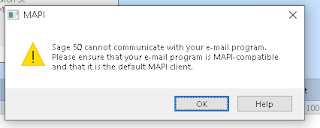
Sage 50 is a pretty common app in Canada for doing small business accounting. However, one of it's major drawbacks is really poor email integration. I think they've improved it somewhat in recent versions, but there is a MAPI dependency. If you install the 64-bit version of Office, then Sage 50 will not be able to use Outlook to send messages. Now that 64-bit Office is the default for Office 365, you need to watch for that as step one. However, yesterday, on a new install of Sage 50, it wasn't working even with the 32-bit version of Outlook. We got the error: Sage 50 cannot communicate with your e-mail program. Please ensure that your email program is MAPI-compatible and that it is the default MAPI client You also need to have Outlook configured as the default mail program. The Mail program in Windows was configured as the default. So, we changed that to Outlook. Still no luck. Same error. The final fix for me was adding a registry key. According to a few people in discus...

Visual Studio 2017 TFS Client - Clear Cached Creds

This one is just a note for me. To clear cached credentials in TFS 2017 browse to C:\Users\ \AppData\Roaming\Microsoft\VisualStudio\15.0_ed299a44\Team Explorer and delete the TeamExplorer.config file. You will then be prompted for credentials next time you start the TFS client.

Hyper-V SCSI Controller Error

Image
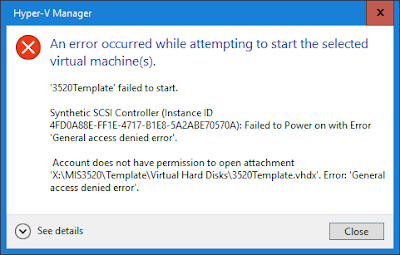
I recently upgraded storage on my Hyper-V server that hosts all of my virtual machines to SSD drives. As part of this, I got lazy for some of the VMs and copied the files manually from drive to drive by using File Explorer rather than moving the VM storage by using Hyper-V Manager. After the disk reconfiguration was done, I got this error for the VMs where I had simply copied the data. Synthetic SCSI Controller (Instance ID GUID) : Failed to Power on with Error 'General access denied error'. Account does not have permission to open attachment ' PathToVirtualDisk '. Error: 'General access denied error'. This is a permissions error indicating that the VM doesn't have access to it's own virtual hard disk. As part of my file copying, the VM level permissions were lost. You can see in the screenshot below that only System, Administrators, and Users have permissions. Normally, you should also see permissions for a GUID that represents the VM with Full control....

Set PowerShell prompt text

I have an annoying issue where I'm storing scripts in a path so long that it makes it awkward to work at the PowerShell prompt. Almost everything I do is wrapping onto the next line. So, to set the prompt to static text that doesn't include the path, use the following command: function prompt {"PS> "} If I'm working with PowerShell prompts connected to different Office 365 tenants, I'll put in text that identifies the tenant. If you do need to view the current directory, you can use Get-Location or $pwd .

Unable to add drive to storage pool

Image
I bought some new SSD drives for my test server that I run VMs on. The number of disks the system could handle was maxed out. So, I needed to shuffle around some data as part of the installation process. During my shuffling, I temporarily added two of the SSD drives and used them as normal drives (not in a storage pool). Later, I deleted the data from those drives and wanted to create a new storage pool with those two drives. However, I found that when I ran the wizard to create the new storage pool, the drives were missing (not listed). They were also not listed in the primordial pool. Using Server Manager, I tried: removing volumes resetting the drives reinitializing the drives taking the drives offline and online changing between GPT and MBR I saw some web site references to drives attached to RAID cards having duplicate identifiers, but mine were attached directly to the SATA interface and had unique identifiers. However, when I ran Get-PhysicalDisk , I noticed that the drives had ...

Outlook Encryption Type Error with Office 365

Image
Office 365 allows you to send email via SMTP based on user authentication. This is commonly used in conjunction with POP or IMAP clients. Where POP or IMAP is used for reading messages and SMTP is used to send the messages. This might also be used by applications and multi-function devices that need to send email. To send SMTP messages through Office 365, you use the following settings: Server: smtp.office365.com User name: UPN of mailbox Outgoing SMTP server port: 587 Encryption type: TLS (STARTTLS in recent versions of Outlook) If you select the wrong encryption type then Outlook will fail to authenticate. For example, if you select the encryption type as SSL/TLS You get the following error which indicates: "Your server does not support the connection encryption type you have specified." It's pretty rare to run into this error because most of the time, you'll be using autodiscover to configure Outlook and use the web-based protocols. However, you might run into this...

Querying IP Addresses for EOP using PowerShell

There is always a desire to lock down the communication for Exchange hybrid servers. If you want to lock down a receive connector in your on-premises Exchange for communication with Exchange Online, there is a published list of IP addresses: https://docs.microsoft.com/en-us/office365/enterprise/urls-and-ip-address-ranges The only IP addresses on that web page that are relevant for a receive connector those for Exchange online and TCP port 25. These are the IP address for Exchange Online Protection (EOP). To simplify automated configuration, Microsoft also makes these IP addresses available in XML format downloadable directly from Microsoft. You can download this using PowerShell. [xml]$xml = invoke-webrequest -uri https://go.microsoft.com/fwlink/?LinkId=533185 Once you have downloaded the xml file, you can extract just the IP addresses for Exchange Online Protection. $EopIP = (($xml.products.product | Where-Object name -eq "eop").addresslist | Where-Object type -eq "ipv4...